Introduction

lazybw is a terminal interface for your Bitwarden vault. You browse, search, copy and edit items with the keyboard, the way you would move around in Vim or lazygit, and you never leave the terminal.
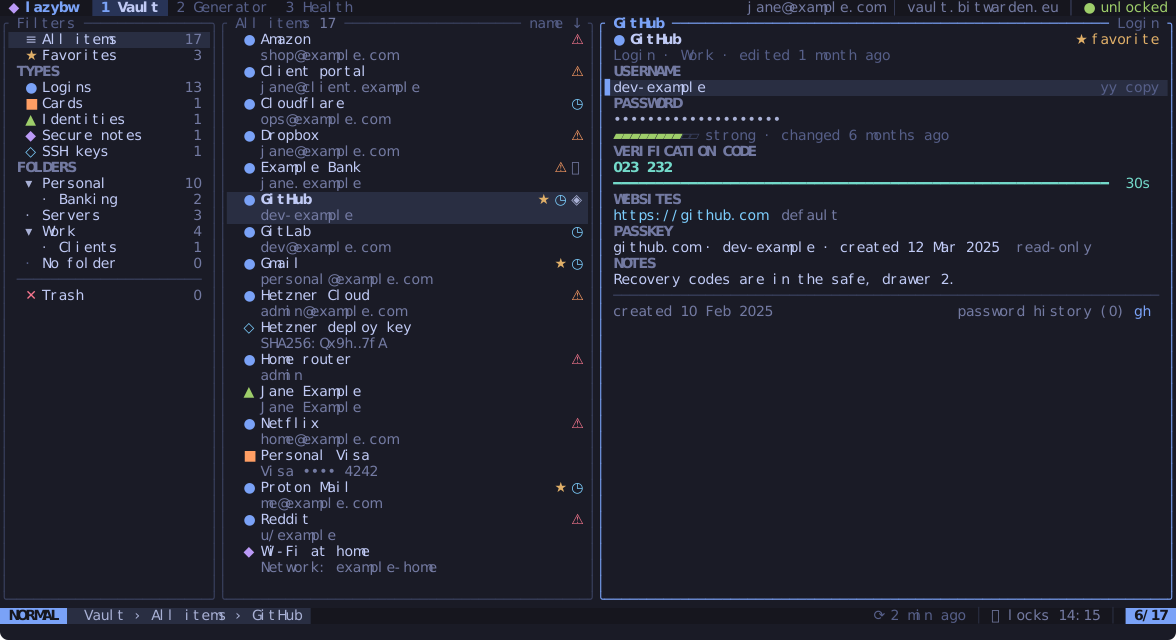
It runs on top of the official Bitwarden command-line client, bw. lazybw
starts bw serve in the background and talks to it over a private channel,
so all encryption and decryption happen in Bitwarden’s own code. lazybw only
draws the screen and sends requests.
What you can do with it
- Log in (email and password with two-step login, single sign-on or an API key), unlock, lock and sync.
- Browse logins, secure notes, cards, identities and SSH keys by type or by folder, and find any item with fuzzy search.
- Copy usernames, passwords and verification codes. The clipboard clears itself after 30 seconds.
- Create and edit items in a form, or open the notes (or the whole item as
JSON) in your
$EDITOR. - Generate passwords and passphrases, check the vault for weak, reused or exposed passwords, and import or export the vault.
- Change every keybinding, pick one of ten themes or write your own.
Who it is for
lazybw is for people who already live in a terminal and use Bitwarden. If you
like Vim motions, you will feel at home within minutes. If you don’t, the
arrow keys work too, and ? shows the keys for the screen you are on.
It runs on Linux, locally or over SSH, under X11 or Wayland.
How this book is organised
Getting started covers installation and the first login. Using lazybw goes through the daily tasks one by one. Making it yours explains the configuration file, the keybindings and the themes. The last chapters describe how lazybw protects your data and list every key, option and command.
Installation
Requirements
- Linux. lazybw works in any terminal emulator, under X11 or Wayland, and over SSH.
- The official Bitwarden CLI,
bw, version 2025.9.0 or newer. - A recent Rust toolchain (1.88 or newer) to build lazybw.
- A Nerd Font in your terminal, for the icons. This one is optional: lazybw can use plain Unicode or ASCII symbols instead.
Install the Bitwarden CLI
Use your distribution’s package if it has one. On Arch Linux:
sudo pacman -S bitwarden-cli
Anywhere else with Node.js installed:
npm install -g @bitwarden/cli
Check the version:
bw --version
lazybw refuses to start with a bw older than 2025.9.0, because it needs
the private-socket mode of bw serve that appeared in that release. A few
features need newer versions: archived items appear from 2025.10.0, and the
vault health report uses bw report password-health from 2026.8.0 (older
versions get a local check without the data-breach lookups).
Install lazybw
Each release has static binaries for x86_64 and aarch64 (64-bit ARM), and packages built from them. The binaries have no library dependencies, so they run on any Linux distribution.
Debian and Ubuntu
sudo apt install ./lazybw_1.0.0-1_amd64.deb # or _arm64.deb
Fedora, openSUSE and RHEL
sudo dnf install ./lazybw-1.0.0-1.x86_64.rpm # or .aarch64.rpm
Arch Linux
lazybw is in the AUR in two forms: lazybw-bin installs the release binary,
and lazybw builds it from source. With an AUR helper such as paru or
yay:
paru -S lazybw-bin # or: paru -S lazybw
Without a helper:
git clone https://aur.archlinux.org/lazybw-bin.git
cd lazybw-bin
makepkg -si
The release also has a ready-made package:
sudo pacman -U lazybw-1.0.0-1-x86_64.pkg.tar.zst
On x86_64 every package pulls in bitwarden-cli from the Arch
repositories.
Any other Linux
tar -xzf lazybw-1.0.0-x86_64-unknown-linux-musl.tar.gz
install -Dm755 lazybw-1.0.0-x86_64-unknown-linux-musl/lazybw ~/.local/bin/lazybw
Every release also has a SHA256SUMS file. Check your download with
sha256sum --check --ignore-missing SHA256SUMS.
Android (Termux)
The aarch64 binary runs in Termux:
pkg install nodejs
npm install -g @bitwarden/cli
tar -xzf lazybw-1.0.0-aarch64-unknown-linux-musl.tar.gz
install -Dm755 lazybw-1.0.0-aarch64-unknown-linux-musl/lazybw "$PREFIX/bin/lazybw"
Termux has no system clipboard that lazybw can reach directly; it copies through your terminal with OSC 52 instead, which the Termux app supports.
Docker
The image on the GitHub Container Registry includes bw:
docker run -it --rm -v lazybw:/home/lazybw ghcr.io/syscallbrain/lazybw
The lazybw volume keeps your Bitwarden login, the lazybw configuration and
its state between runs. Inside a container there is no system clipboard;
lazybw copies through your terminal with OSC 52. Run lazybw subcommands
by adding them at the end, for example … ghcr.io/syscallbrain/lazybw doctor.
From source
With Rust 1.88 or newer:
cargo install --git https://github.com/SyscallBrain/lazybw lazybw
Or from a clone, which also lets you build the packages yourself
(scripts/dist.sh):
git clone https://github.com/SyscallBrain/lazybw
cd lazybw
cargo install --path crates/lazybw
On Arch Linux, the lazybw AUR package does this for you.
Check the setup
lazybw doctor
doctor prints what lazybw found: where bw is and which version, whether
you are logged in, which clipboard backend it will use, the terminal size and
colour depth, and the paths of the configuration, state and log files. Run it
first whenever something does not work.
Where lazybw keeps its files
| What | Where |
|---|---|
| Configuration | ~/.config/lazybw/config.toml |
| Your themes | ~/.config/lazybw/themes/*.toml |
| Log, command history, folder state | ~/.local/state/lazybw/ |
Temporary files (exports, $EDITOR buffers) | $XDG_RUNTIME_DIR/lazybw/ |
lazybw follows the XDG variables, so $XDG_CONFIG_HOME and $XDG_STATE_HOME
move these if you set them. Your vault itself stays where bw keeps it.
First run
Start lazybw with:
lazybw
The first screen says “Starting Bitwarden CLI…” while lazybw finds bw,
checks its version and asks it whether you are logged in. What comes next
depends on the answer.
Logging in
If bw has no account yet, you get the login screen. It has two boxes:
- Server:
bitwarden.com(United States),bitwarden.eu(European Union) or your own self-hosted server. - Method: email and password, single sign-on, or an API key.
Move with j and k, switch between the boxes with Tab and press Enter
to continue.
For email and password, and for single sign-on, lazybw steps aside and runs
bw login in the terminal, so you see Bitwarden’s own prompts, including
two-step login. When bw login finishes, lazybw comes back and opens the
vault. You are not asked for the master password a second time.
For an API key, lazybw asks for the client id and secret in its own form. You will find both in the Bitwarden web vault under Settings, Security, Keys.
Unlocking
When bw already knows your account but the vault is locked, lazybw shows
the unlock screen. Type the master password and press Enter.
Ctrl-o logs out instead (after confirming), and Ctrl-c quits. Ctrl-c
also quits from the login screen and from the start-up and error screens.
Locking
The vault locks after 15 minutes without a key press, and you can lock it
yourself with Space then l. Locking wipes everything lazybw holds in
memory: the decrypted items, the undo history, the generator history and the
clipboard, if it still holds something lazybw copied.
You can also lock a running lazybw from outside, for example from a screen-locker hook:
pkill -USR1 lazybw
Quitting
Press q on the vault screen, or type :q. lazybw clears the clipboard on
the way out if it still holds a value it copied.
A tour of the screen
The vault screen has a bar at the top, panes in the middle and two lines at the bottom.
 ◆ lazybw  1 Vault  2 Generator  3 Health       you@example.com │ unlocked
╭ Filters ──────────╮╭ Logins 198 ──── name ↓ ╮╭ GitHub ──────────── Login ╮
│  ≡ All items  247 ││ ● Amazon               ││ ● GitHub                  │
│  ★ Favorites   12 ││   shop@example.com     ││ Login · Personal          │
│ TYPES             ││▌● GitHub           ★ ◷ ││ USERNAME                  │
│▌ ● Logins     198 ││▌  dev-example          ││ dev-example            yu │
│ FOLDERS           ││ ● GitLab            ◷  ││ PASSWORD                  │
│  ▾ Personal    80 ││   dev@example.com      ││ •••••••••• za reveal · yp │
│      Banking    6 ││                        ││                           │
╰───────────────────╯╰────────────────────────╯╰───────────────────────────╯
 NORMAL  Vault › Logins › GitHub          ⟳ 2m ago │ ⚿ locks 14:32   3/198
 Copied password for "GitHub". Clipboard clears in 30s.
The top bar
On the left are the three tabs: Vault, Generator and Health. Switch with
Space followed by 1, 2 or 3, or with gt and gT. On the right you
see the account email, the server and whether the vault is unlocked.
The panes
The filters pane lists All items, Favorites, the item types, your folders, No folder and the Trash, each with a count. The middle pane lists the items that match the selected filter. The right pane shows the item under the cursor.
The focused pane has a coloured border. Tab moves the focus to the next
pane, and h and l move left and right.
The layout follows the width of the terminal:
| Width | Layout |
|---|---|
| 140 columns or more | Three panes, as above. |
| 100 to 139 columns | The filters become a narrow column of icons (the rail). The folder icon opens a folder picker. |
| Under 100 columns | One pane at a time. l or Enter goes one level deeper, h goes back. |
Space b hides or shows the filters pane, and you can drag the pane
borders with the mouse to resize them.
The bottom lines
The status line starts with the mode (NORMAL, INSERT, VISUAL, COMMAND or SEARCH), followed by where you are. Further right it shows the keys you have typed so far, the clipboard countdown while a copied value is pending, the time of the last sync, when the vault will lock, and your position in the list.
The line under it shows messages, such as “Copied password” or an error from
bw. Space m opens the history of all messages from the session.
List markers
Items in the list can carry small markers on the right: ★ for favourites,
◷ for items with a verification code, an icon for passkeys and a lock for
items that ask for the master password again. After a health check, a
warning sign marks passwords that are weak, reused or exposed.
Moving around
lazybw uses Vim’s keys. If you know Vim, most of this page will be familiar.
Basic movement
| Keys | Moves |
|---|---|
j / k (or the arrow keys) | down / up one row |
gg / G | to the first / last row |
Ctrl-d / Ctrl-u | half a page down / up |
Ctrl-f / Ctrl-b | a page down / up |
H / M / L | to the top / middle / bottom of the visible rows |
zz / zt / zb | scroll so the cursor sits in the middle / top / bottom |
h / l | focus the pane to the left / right |
Tab / Shift-Tab | focus the next / previous pane |
A number before a motion repeats it: 5j moves five rows down and 12G goes
to the twelfth item. A few actions take a count too, so 3dd moves three
items to the trash.
The leader key
Many commands start with the leader key, which is Space unless you change
it. Space g opens the generator, Space l locks the vault, and so on.
In this book the leader is written as Space.
Which-key
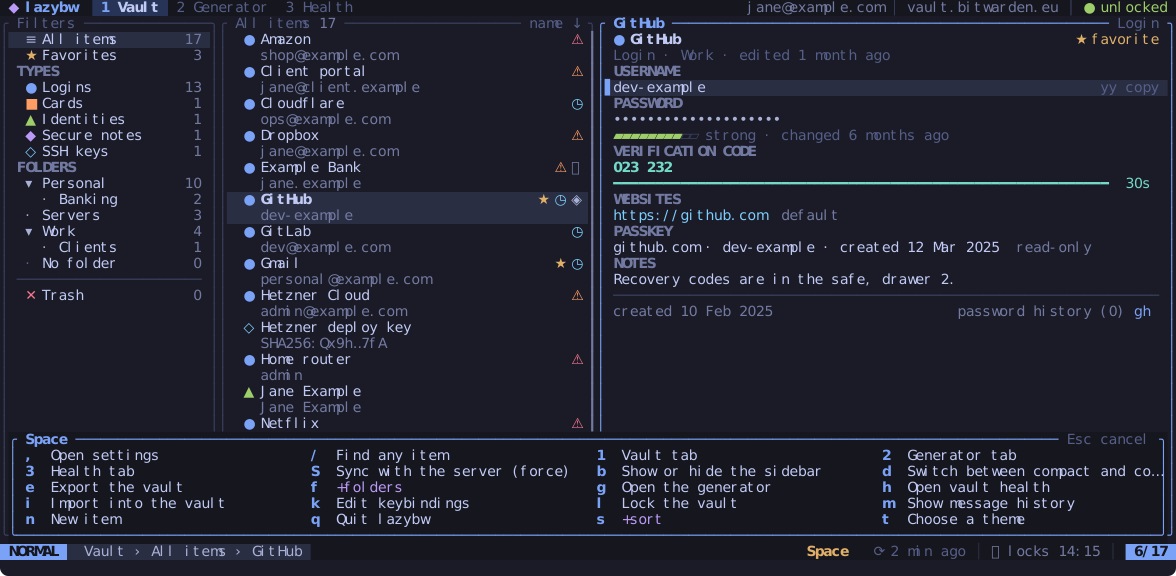
Press Space and wait a moment. A panel opens above the status line with
every key that can follow, each with a short description. Groups that lead
to more keys are marked with a +, such as +folders behind Space f.
The panel stays open until you press a key, and Esc cancels.
The same panel appears for the other prefixes: g, z, y and d.
If you type a sequence that does not exist, such as z followed by a key
that has no meaning after z, lazybw drops the whole sequence and does
nothing. It never runs the second key on its own.
Help
? opens the help for the screen you are on, grouped by context. Press /
to search it, and q or Esc to close it.
Mouse
Clicking selects panes, rows and tabs, the wheel scrolls, and dragging a
pane border resizes it. Set ui.mouse = false if you would rather the
terminal kept the mouse for selecting text.
Redrawing the screen
If something ever leaves garbage on the screen, Ctrl-l repaints all of it.
Finding items
Filters
Pick a filter in the left pane with Enter: all items, favourites, one item
type, a folder, items without a folder, or the trash. The list title shows
which filter is active and how many items it holds, for example
Finanças › Bancos 7.
Space s changes the sort order. It is followed by n (name), m
(modified), c (created) or t (type), and Space s r reverses the
order.
Search
/ searches inside the current filter. The list narrows as you type, Enter
keeps the result and returns to the list, and n and N jump to the next and
previous match. Esc clears the search.
The search is fuzzy, so gthb finds GitHub. It looks at the item name first,
then the username, the website hosts and the names of custom fields. Set
vault.search_notes = true to search inside notes as well.
You can narrow the search with qualifiers:
| Qualifier | Matches |
|---|---|
type:login (or l, note, card, identity, ssh) | one item type |
folder:work/proj | folders whose path starts with this; folder:none for items without one |
is:fav, is:trash, is:reprompt | favourites, trashed items, items that ask for the master password |
is:weak, is:reused, is:exposed, is:old, is:insecure | results of the last health check |
has:totp, has:passkey, has:fields, has:notes, has:uri | items with that kind of data |
uri:google, user:alice, name:bank | text inside one field |
Put - in front of a word or qualifier to exclude it, and quotes around a
phrase with spaces. A few examples:
git -type:note
has:totp folder:work
is:reused uri:google
"home router"
Quick open
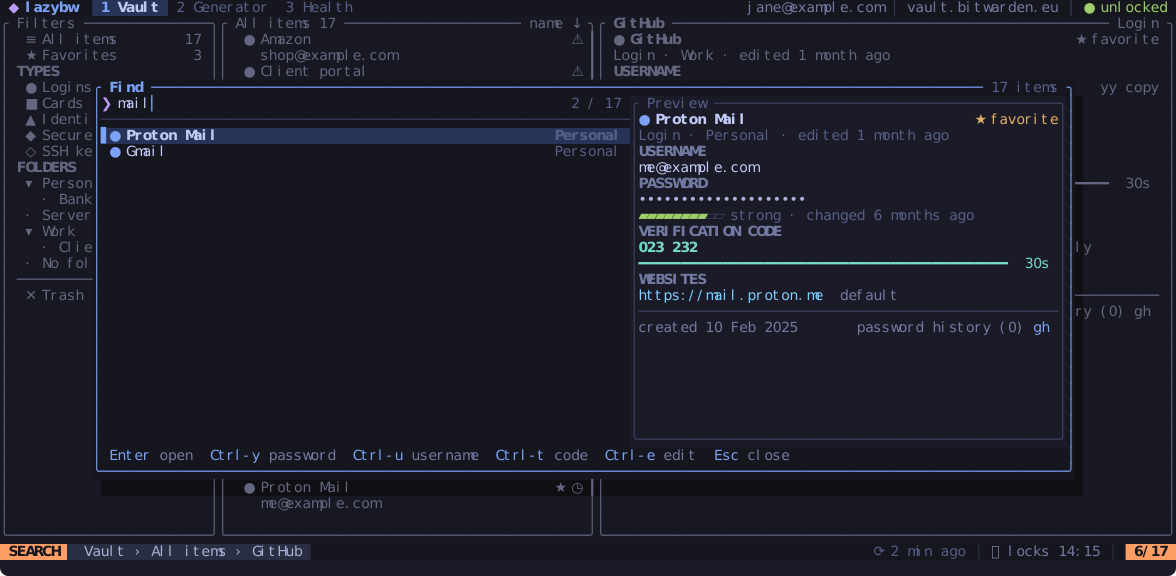
Ctrl-p (or Space /) opens a finder over the whole vault, wherever you
are. Type a few letters and act on the match without leaving the finder:
| Keys | Does |
|---|---|
Enter | open the item |
Ctrl-y | copy the password |
Ctrl-u | copy the username |
Ctrl-t | copy the verification code |
Ctrl-e | edit the item |
Ctrl-n / Ctrl-p | next / previous match |
Quick open uses the same search language as /. It leaves trashed items out
unless you add is:trash.
Jumping back
lazybw remembers where you have been. Ctrl-o goes back to the previous item
or filter and Ctrl-i goes forward again. gf jumps to the folder of the
item under the cursor.
Reading and copying secrets
The detail pane
The right pane shows every field of the selected item: username, password, verification code, websites, custom fields, notes and, for cards and identities, their own fields. Passwords and hidden fields show as dots.
Press l or Enter on an item to move into the detail pane. There j and
k move from field to field, and the hint on the right of each row tells you
the key that acts on it.
Copying
| Keys | Copies |
|---|---|
yy | the main field (in the list) or the field under the cursor (in the detail pane) |
yu | the username |
yp | the password |
yt | the current verification code |
yU | the first website |
yn | the notes |
Copying never shows the value on screen. The status line counts down while
the value sits on the clipboard, and after 30 seconds lazybw clears the
clipboard, but only if it still holds what lazybw put there. If you copied
something else in the meantime, lazybw leaves it alone. Change the delay with
security.clipboard_timeout.
lazybw uses the system clipboard on X11 and Wayland, falling back to
wl-copy, xclip or xsel. Over SSH, without a display, it sends the text
to your local terminal with the OSC 52 escape sequence, which most modern
terminal emulators accept.
Revealing a value
za shows the hidden field under the cursor, or the password when you are in
the list. zR shows every hidden field of the item and zM hides them all
again. A revealed value hides itself after 20 seconds
(security.reveal_timeout), when you move to another item, and when the
terminal loses focus.
Verification codes
If a login has an authenticator key, lazybw computes the six-digit code
itself and shows it with a bar that empties as the 30-second window runs
out. This works without a Bitwarden Premium subscription, because lazybw
never asks the server for the code. yt copies it. Turn the codes off with
security.totp = false.
Items that ask for the master password
Bitwarden lets you mark an item so the master password is required before
anything secret in it is shown. lazybw honours this flag everywhere: before
revealing, copying, editing, opening the password history or generating a
new password for such an item, it asks for your master password. A wrong
password keeps the dialog open so you can try again; Esc or Ctrl-c
cancels.
To skip the question for a while after a correct answer, set
security.reprompt_grace, for example to "5m".
Opening a website
gx opens the item’s first website in your browser. In the detail pane it
opens the website under the cursor. A website saved without a scheme, such
as github.com, opens as https://github.com.
Links that are not web addresses (file:, androidapp:, or a scheme some
program registered, like vscode:) ask before opening, because the item may
come from a shared collection and the link starts whatever program handles
it.
Password history and item info
gh lists the item’s previous passwords with the date each one stopped being
used. K shows the item’s details: when it was created, edited and when the
password last changed, its id, folder and type.
Editing items
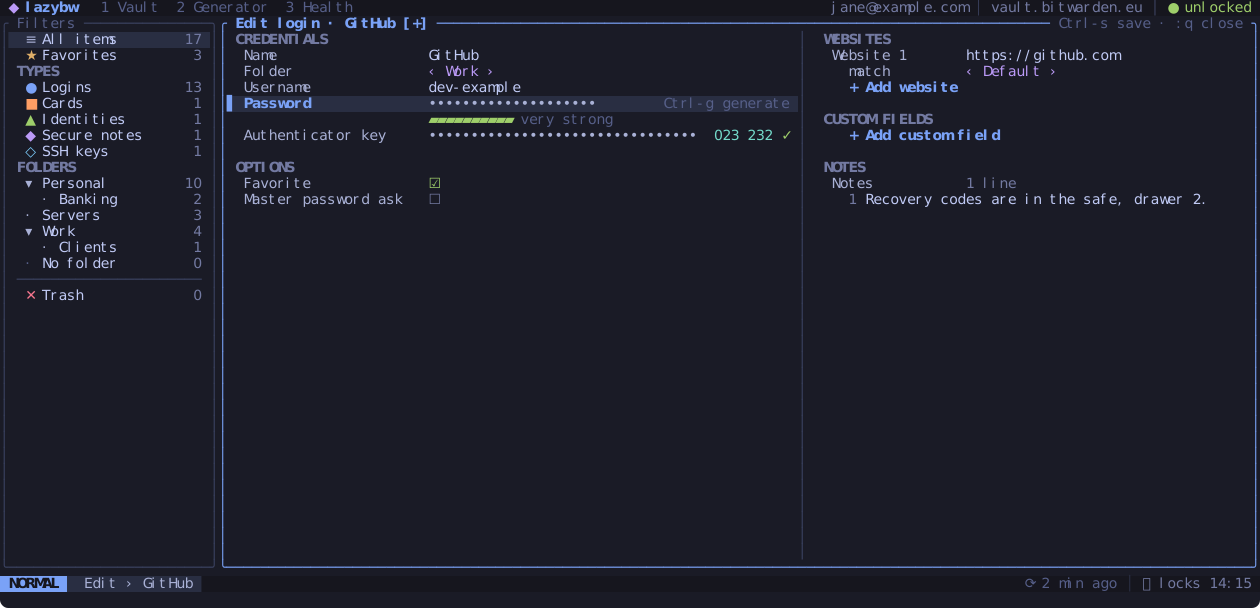
Creating an item
Press a in the list. A small menu asks for the type: l login, n secure
note, c card, i identity or s SSH key. The new item starts in the
folder you are looking at.
Opening the editor
e (or i) on an item opens it in the editor. The form replaces the list and
detail panes. On a wide terminal it has two columns: credentials and options
on the left, websites, custom fields and notes on the right.
The editor works like Vim, with two modes.
In NORMAL mode you move between fields:
jandkgo down and up. They walk the whole left column first, then the right one.handljump to the other column, to the field at the same height.ggandGgo to the first and last field.
In INSERT mode you type into the field under the cursor:
istarts typing at the cursor,aafter it,Iat the start andAat the end.cc(orS) clears the field and starts typing.Escgoes back to NORMAL.TabandShift-Tabmove to the next and previous field without leaving INSERT.
Inside a field you have the usual editing keys: Backspace, Delete, the
arrows, Home, End, Ctrl-w to delete a word and Ctrl-u to delete to
the start. Pasting works as well.
Fields with choices
Some fields offer a fixed set of values, like the folder, a card’s brand or a
website’s match type. Ctrl-a and Ctrl-x step through the choices, and
Enter opens a list to pick from. Checkboxes such as Favorite toggle with
Enter.
Lists of websites and custom fields
On a website or custom field, o adds a new one below and O above, and
dd removes it. The “+ Add website” and “+ Add custom field” rows do the same
with Enter.
Generating a password
Ctrl-g opens the password generator over the form. Adjust the options as on
the generator tab, press r for another password, then
Enter to put it in the password field, or Esc to cancel. If the cursor is
on another hidden field, the password goes there instead.
Using your own editor
Ctrl-e opens the notes in $VISUAL or $EDITOR (or the command in
editor.command). Save and quit the editor to bring the text back into the
form. On an SSH key’s private key field, Ctrl-e edits the key instead, and
lazybw checks that what you saved is a valid key.
gE opens the whole item as JSON, for changes the form cannot make.
The text is written to a temporary file in $XDG_RUNTIME_DIR/lazybw, readable
only by you, and lazybw overwrites and deletes it as soon as the editor
exits. For Vim, Neovim, Emacs and micro, lazybw also switches off swap,
undo, backup and history files, so no copy of the secret is left elsewhere on
disk.
Saving and closing
| Keys | Does |
|---|---|
Ctrl-s or :w | save and stay in the editor |
ZZ or :wq | save and close |
q, Esc or :q | close; asks first if there are unsaved changes |
ZQ or :q! | close and throw the changes away |
When there are unsaved changes, closing asks “Save changes to …?”. Answer y
to save, n to discard or c to stay in the editor. The title shows [+]
while the item has unsaved changes.
u undoes the last change and Ctrl-r redoes it. As in Vim, everything you
type between i and Esc counts as one change. When you undo back to the
last saved state, the [+] disappears. :e! reloads the item as it is on the
server.
Each save is also one step in the vault’s undo history: after closing the
editor, u in the list puts the item back as it was before the save.
If someone changes the same item elsewhere (in the browser extension, for instance) while you edit it, lazybw shows a banner. Saving then keeps your version.
Folders
Bitwarden folders can be nested by naming them with a slash, such as
Finanças/Bancos. lazybw shows them as a tree in the filters pane.
Opening and closing folders
A folder that has subfolders has an arrow in front of it: ▾ when it is open
and ▸ when it is closed. In the filters pane:
| Keys | Does |
|---|---|
l or → | open a closed folder; on an open folder or one without subfolders, show its items |
h or ← | close an open folder; on a subfolder, go up to its parent |
Enter | show the folder’s items |
za | open or close the folder under the cursor |
zR / zM | open / close every folder |
Clicking the arrow with the mouse opens or closes the folder as well.
lazybw remembers which folders you closed, also after you quit. It stores
them by their Bitwarden id in ~/.local/state/lazybw/folds.json. Folder names
are encrypted in your vault, so lazybw never writes them to that file. Since
the id stays the same when you rename a folder, a closed folder stays closed
after a rename too.
Going to a folder
Space f f opens a list of all folders. Type to filter it and press
Enter to show that folder’s items. “No folder” at the top shows the items
that are not in any folder.
gf on an item jumps to its folder.
Moving items
m opens a folder list for the item under the cursor. Pick a folder, or “No
folder” to take the item out of its current one. To move several items at
once, select them first (see bulk actions).
The same list has “+ Create folder…” at the top, which asks for a name and creates the folder.
Creating, renaming and deleting folders
| Keys | In the filters pane | Anywhere |
|---|---|---|
| New folder | a | Space f n |
| Rename | r | Space f r |
| Delete | dd | Space f d |
Renaming a folder that has subfolders offers to rename the subfolders too,
so Work/Projects follows when Work becomes Job. Deleting a folder moves
its items to No folder; the dialog asks whether to delete the subfolders as
well. All three can be undone with u.
Trash, undo and bulk actions
The trash
dd moves the item under the cursor to the trash. Trashed items stay in
Bitwarden’s trash for 30 days, where you can bring them back.
Select Trash in the filters pane (or type :trash) to see them. There:
| Keys | Does |
|---|---|
r | restore the item |
D | delete it permanently |
X | empty the whole trash |
Neither can be undone, so lazybw asks first. For emptying the trash you
confirm by typing empty.
Undo and redo
u undoes the last change to the vault and Ctrl-r redoes it. This covers
creating, editing, trashing, restoring, favouriting and moving items, and
creating, renaming and deleting folders. A message tells you what was undone,
for example “Undone: moved 3 items to Trash”.
lazybw keeps the last 100 changes of the session. The history is cleared when the vault locks. Permanent deletion, emptying the trash, import and export cannot be undone.
One detail about passwords: if you undo a password change, the item gets the old password back, but Bitwarden’s password history keeps the newer one.
Working on several items
There are two ways to act on more than one item.
x marks or unmarks the item under the cursor. Mark as many as you like,
anywhere in the list, and the next action applies to all of them.
V starts visual mode, as in Vim. Moving with j, k, G and the rest
extends the selection. Then:
| Keys | Does to the selection |
|---|---|
d | move to the trash |
m | move to a folder |
* | make favourites (or remove them, if all already are) |
D / r | delete permanently / restore (in the trash) |
Esc or V | leave visual mode |
A bulk action is one step in the undo history, so one u undoes all of it.
Favourites and copies
* adds the item to your favourites or removes it. Y copies the whole
item and p creates a new item from that copy, which is a quick way to make
a similar login.
Password generator
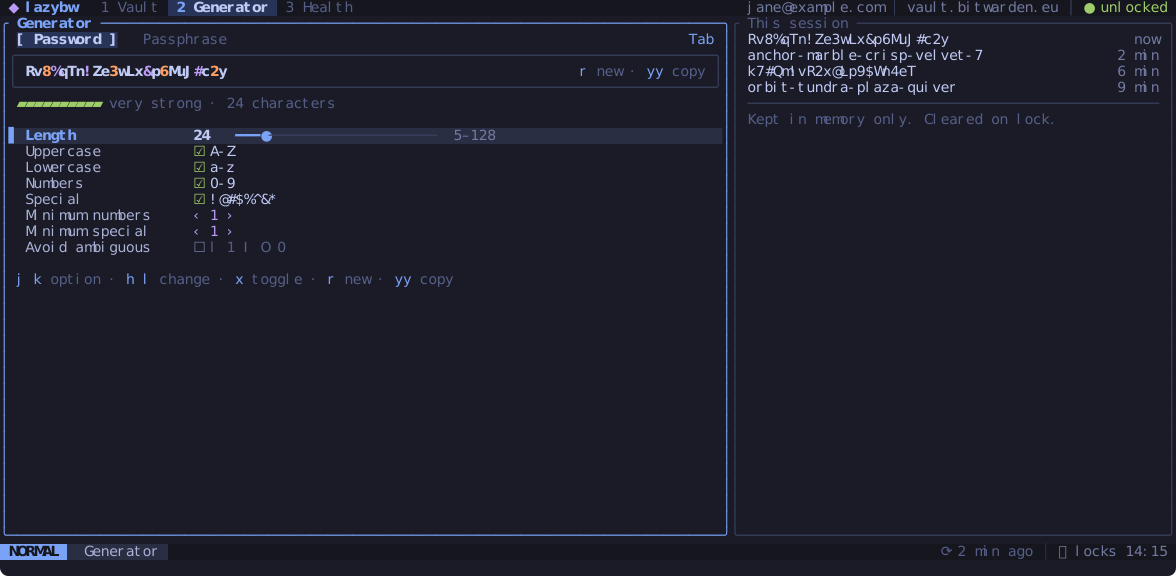
The second tab (Space 2, or Space g) generates passwords and
passphrases with Bitwarden’s own generator.
Options
Tab switches between Password and Passphrase. Move between the options with
j and k:
- A password has a length (5 to 128) and four character sets: upper case,
lower case, digits and symbols. You can ask for a minimum number of digits
and symbols, and leave out characters that are easy to confuse (
l,1,I,O,0). - A passphrase has a number of words (3 to 20), a separator, and options to capitalise the words and add a number.
h and l (or - and +) change numbers and choices, and x turns a
checkbox on or off. Every change makes a new password. r makes another one
with the same options.
The strength bar under the password estimates how hard it would be to guess.
Using the password
yy copies it. Enter puts it into the login you have selected in the vault,
after asking you to confirm. Bitwarden keeps the old password in the item’s
password history (the last five).
To generate a password while editing an item, press Ctrl-g in the editor
(see Editing items).
History
The right pane lists the passwords generated in this session, newest first. The list exists only in memory and is wiped when the vault locks or lazybw exits.
Defaults
The [generator] section of the configuration sets the
options lazybw starts with. Changes you make on the tab last until you quit.
From the command line, :gen 32 generates and copies a 32-character password,
and :gen phrase 6 a six-word passphrase.
Vault health
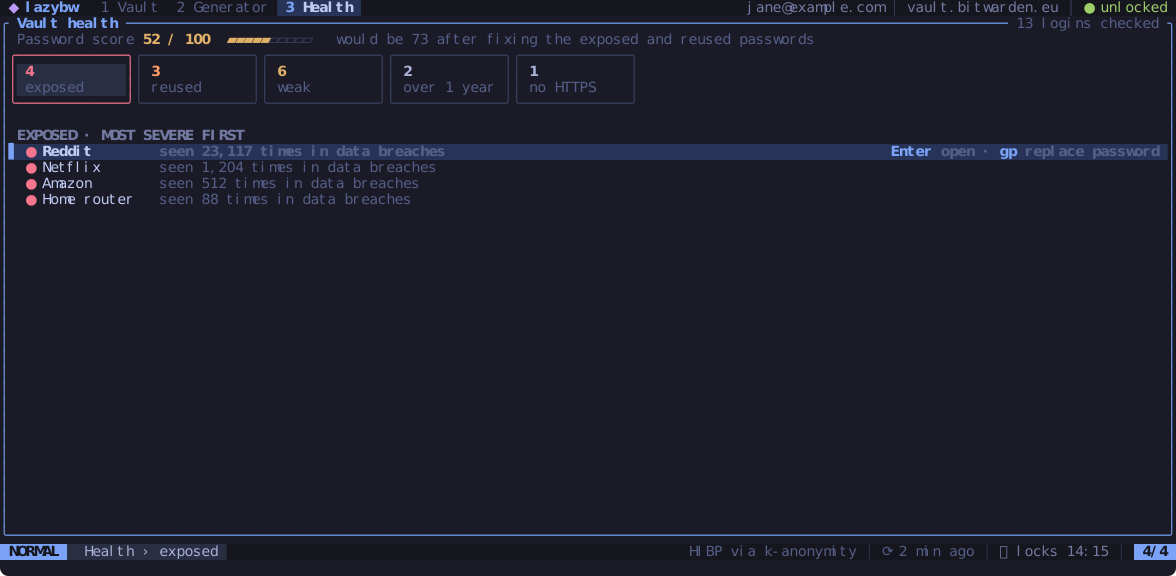
The third tab (Space 3, or Space h) checks your logins and tells you
which passwords to change first.
The report
At the top is a password score from 0 to 100 and, next to it, the score you would get after fixing the exposed and reused passwords. The score sums up the logins lazybw checked; it is not a rating of your whole account. Under it are five categories (cards on a wide terminal, a compact row on a narrow one):
| Category | Means |
|---|---|
| Exposed | the password appears in known data breaches |
| Reused | the same password is used by more than one item |
| Weak | the password is easy to guess |
| Old | the password has not changed for a year (health.old_password_age) |
| No HTTPS | a website of the login uses plain http:// |
Tab and Shift-Tab move between the cards, and the list below shows the
logins in that category, most serious first. For exposed passwords it shows
how many times each one was seen in breaches.
| Keys | Does |
|---|---|
Enter | open the item in the vault |
e | edit the item |
gp | generate a new password for it and save it in the vault (after confirming) |
r | run the check again |
gp only changes the password stored in the vault. Change it on the website
as well, or the account keeps the old one.
After a check, the vault list marks affected items with a warning sign, and
you can search for them with is:weak, is:reused, is:exposed, is:old
and is:insecure.
How the breach check works
With bw 2026.8.0 or newer, lazybw runs bw report password-health. To find
exposed passwords, bw asks the Have I Been Pwned service using
k-anonymity: it sends only the first five characters of each password’s SHA-1
hash and compares the answers locally. Your passwords never leave your
machine.
If you would rather not contact Have I Been Pwned at all, set
health.check_exposed = false. The Exposed card then shows a dash.
With an older bw, lazybw does the other checks itself and skips the breach
lookup.
Import and export
Export
Space e (or :export) opens the export wizard.
- Choose the format and where to write the file. The wizard suggests the
password-protected format, the safe choice for a backup.
Tabcompletes the path. - For a password-protected file, choose its password and type it again. A strength bar shows how good it is.
- Confirm with your master password.
The formats:
| Format | Notes |
|---|---|
| JSON | readable, every field, not encrypted |
| JSON encrypted with a password | for backups; any Bitwarden account can import it with the password |
| JSON encrypted with your account | only this Bitwarden account can import it |
| CSV | logins and notes only, not encrypted |
The file is created readable only by you (mode 600). Plain JSON and CSV exports hold every password in clear text, and the wizard says so before writing. Keep such a file on an encrypted disk and delete it when you are done.
You can skip the first step with :export json ~/backup.json, or with
encrypted, account or csv as the format.
Import
Space i (or :import) opens the import wizard.
- Pick the format. The list comes from
bw import --formats, with the Bitwarden formats first. Type to filter it:1password,keepass,lastpassand many others are there. - Type the path of the file.
Tabcompletes it. A password-protected Bitwarden file also asks for its password. - For Bitwarden JSON files, lazybw shows a preview before importing.
The preview counts the items by type, lists the folders the import will create, and finds items you already have. An item counts as a duplicate when it has the same type and name and, for logins, the same username and the same site. Duplicates are skipped by default. In the preview:
| Keys | Does |
|---|---|
j / k | move through the duplicates |
x or Space | keep this duplicate (import it), or skip it again |
a | skip all duplicates, or none |
s | turn skipping off (import everything) or on |
Enter | import |
When skipping, lazybw writes a filtered copy of the file to
$XDG_RUNTIME_DIR/lazybw, imports that, and overwrites and deletes the copy
straight away. Folders of the remaining items are kept.
After the import, lazybw syncs, shows “Imported N items. Skipped M duplicate(s).”, and lists all items sorted by creation date, so the new ones are easy to check.
Imports cannot be undone, so it is worth exporting a backup first.
:import bitwardenjson ~/file.json skips straight to the file step.
The command line
: opens a command line at the bottom of the screen, as in Vim. Tab
completes commands and their arguments (themes, folders, item types, settings,
file paths), and the up and down arrows go through earlier commands. lazybw
keeps this history between sessions.
The most useful commands:
| Command | Does |
|---|---|
:q, :q! | quit (in the editor: close the item, or discard it) |
:qa, :qa! | quit, even from the editor |
:w, :wq | save, save and close (in the editor) |
:new login | new item of a type (login, note, card, identity, ssh) |
:edit json | edit the item as JSON in $EDITOR |
:copy password | copy a field of the selected item |
:move Work | move the selected item to a folder |
:folder new Taxes | create a folder (also rename and delete) |
:gen 32, :gen phrase 6 | generate a password or passphrase and copy it |
:sort modified, :sort name! | change the sort order (! reverses it) |
:theme nord | switch theme |
:set theme=nord | change a setting; :set animations! toggles one |
:sync, :sync! | sync, or force a full sync |
:lock, :logout | lock the vault, log out |
:export, :import | open the wizards |
:health, :trash, :empty-trash | open the health tab, the trash, empty the trash |
:12 | go to the twelfth item |
:doctor | show the same diagnostics as lazybw doctor |
The default keybindings page has the complete list.
Configuration
lazybw reads ~/.config/lazybw/config.toml. The file is optional: without
it, lazybw uses the defaults listed in
Default configuration. Put in it only the options you
want to change.
[ui]
theme = "catppuccin-mocha"
icons = "unicode"

[security]
clipboard_timeout = "20s"
auto_lock = "10m"

[vault]
sort = "modified"
Durations are written as "500ms", "30s", "15m", "2h" or "365d".
Options that can be switched off also accept "never".
Changing settings from inside lazybw
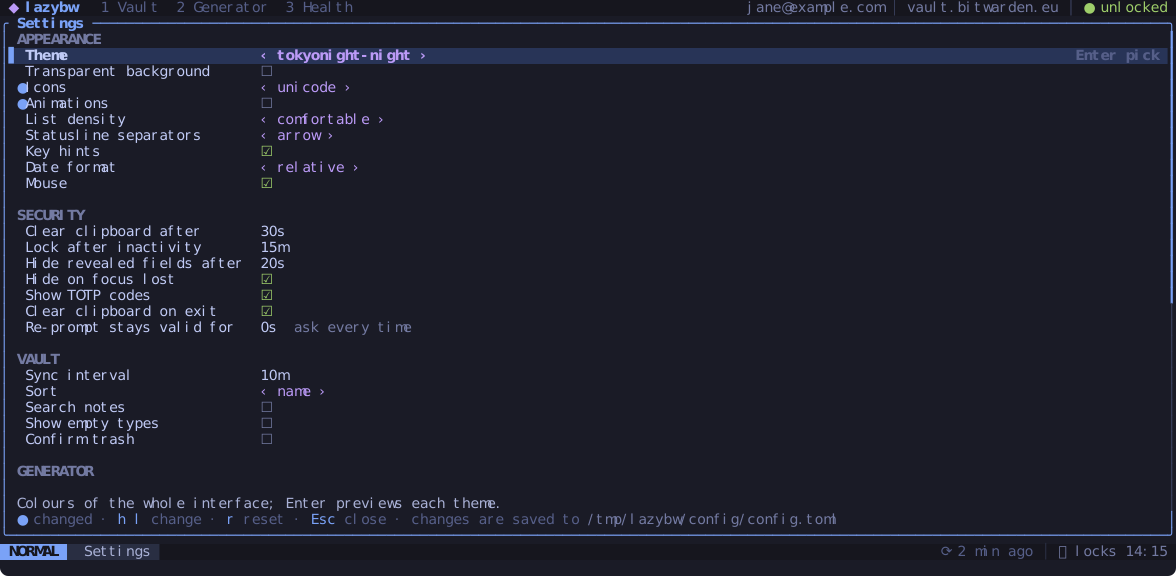
Space , opens the settings screen. Move with j and k, change a value
with h and l (or Enter), and reset it to the default with r. The line
at the bottom explains the selected option, and a ● marks the ones you have
changed from the default. Changes
take effect at once and are written back to config.toml, keeping your
comments and the order of the file.
The same works from the command line:
:set theme=nord            set a value
:set animations!           toggle a true/false option
:set clipboard_timeout?    show the current value
:set animations&           back to the default
Short names work when they are unambiguous. The full name, such as
ui.animations, always works.
Checking the file
lazybw config --check          # validate config.toml
lazybw config --path           # print where it is
lazybw config --print-default  # print the full default file
lazybw also checks the file on start. A mistake, such as a wrong value or a typo in a key binding, opens an error screen that names the file, the line and what is wrong. Unknown keys only produce a warning.
The options most people change
| Option | Default | What it does |
|---|---|---|
ui.theme | "tokyonight-night" | colour theme (see Themes and icons) |
ui.icons | "nerdfont" | nerdfont, unicode or ascii |
ui.animations | true | small fades and slides when panes and popups open |
ui.list_density | "comfortable" | two lines per item, or compact for one |
ui.mouse | true | mouse support |
security.clipboard_timeout | "30s" | when copied values are cleared |
security.auto_lock | "15m" | lock after this long without a key press |
security.reveal_timeout | "20s" | when revealed values hide again |
security.reprompt_grace | "0s" | how long a correct master password re-prompt counts |
vault.sync_interval | "10m" | background sync |
vault.sort | "name" | name, modified, created or type |
vault.search_notes | false | let search look inside notes |
vault.confirm_trash | false | ask before dd moves an item to the trash |
editor.command | "" | editor for Ctrl-e; empty means $VISUAL, then $EDITOR, then vi |
keys.leader | "<Space>" | the leader key |
keys.timeoutlen | "1000ms" | how long lazybw waits to see if a sequence continues |
Using a different bw
lazybw looks for bw in bw.path first, then in the LAZYBW_BW environment
variable, then on your PATH. Set bw.path if you keep several versions.
By default lazybw ignores a BW_SESSION variable in the environment and asks
you to unlock. Set bw.inherit_session = true to reuse an existing session
instead.
Keybindings
Every key in lazybw can be changed. The full list of defaults is in Default keybindings.
How bindings are organised
Keys belong to a context: global, sidebar, list, detail, editor,
insert, generator, health and a few more for popups. lazybw looks in the
most specific context first, so dd can mean “move to trash” in the list and
“delete folder” in the filters pane.
Keys are written in Vim notation:
| Notation | Key |
|---|---|
a, G, ? | a printable key |
<CR>, <Esc>, <Tab>, <BS>, <Del>, <Space> | named keys |
<Up>, <PageDown>, <F5> | arrows, paging, function keys |
<C-p>, <A-x>, <S-Tab> | Ctrl, Alt and Shift combinations |
gg, <leader>fn | sequences |
In the configuration file
[keys]
leader = "<Space>"

[keys.global]
"<leader>tt" = "theme.set tokyonight-storm"

[keys.list]
"dd" = "noop"              # remove a default binding
"<Del>" = "item.trash"     # add another key for an action
"yl" = "item.copy uri"     # an action with an argument
"<leader>w" = ":sync!"     # run a command-line command
A binding replaces the default with the same keys in the same context, and
"noop" removes one. The action keeps its other keys. With
keys.defaults = false, lazybw starts from an empty keymap and uses only
yours.
[keys.labels] sets the text which-key shows for a prefix:
[keys.labels]
"<leader>x" = "+extras"
With the keybinding editor
Space k opens a table of every action with its keys.
| Keys | Does |
|---|---|
Tab / Shift-Tab | switch context |
/ | filter by description, action or key |
Enter or c | rebind: press the new keys, then Enter |
a | add another key to the action |
dd | remove a key |
r / R | reset the action / the whole context |
Ctrl-s or :w | save |
Changed rows have a dot in front. Saving writes only your differences from
the defaults into config.toml.
If the keys you pick are already taken in that context, lazybw tells you
which action uses them and asks before replacing it. To bind Enter,
Backspace or Escape, edit the file, because the editor uses those keys
itself.
For one session
:map list gm item.move adds a binding until you quit, and
:unmap list gm removes it. :map on its own lists all bindings.
Checking your bindings
lazybw keys                  # every binding, grouped by context
lazybw keys --context list   # only one context
lazybw keys --defaults       # the built-in defaults, ignoring your file
lazybw keys --check          # validate; exits with an error code on mistakes
--check catches unknown actions (and suggests the closest name), actions
used in a context where they make no sense, and keys that would make text
impossible to type.
Terminals and special keys
Some terminals cannot tell Ctrl-i from Tab, Ctrl-m from Enter or
Ctrl-[ from Esc. lazybw turns on the keyboard protocol that separates them
where the terminal supports it: kitty, foot, WezTerm, Ghostty and recent
Alacritty. Inside tmux, add set -g extended-keys on to tmux.conf.
Moving in pickers and lists
Every picker (folder, item type, theme, format) and every list in a popup
moves with the arrows or with Ctrl-n (next) and Ctrl-p (previous), and
so do the settings screen, the keybinding editor and the help. In
the pickers, quick open and the command line, letters are typed into the
filter, so those keys are the way to move. The picker, quick open and
command line keys can be rebound under [keys.picker], [keys.quick_open]
and [keys.cmdline].
Themes and icons
Built-in themes
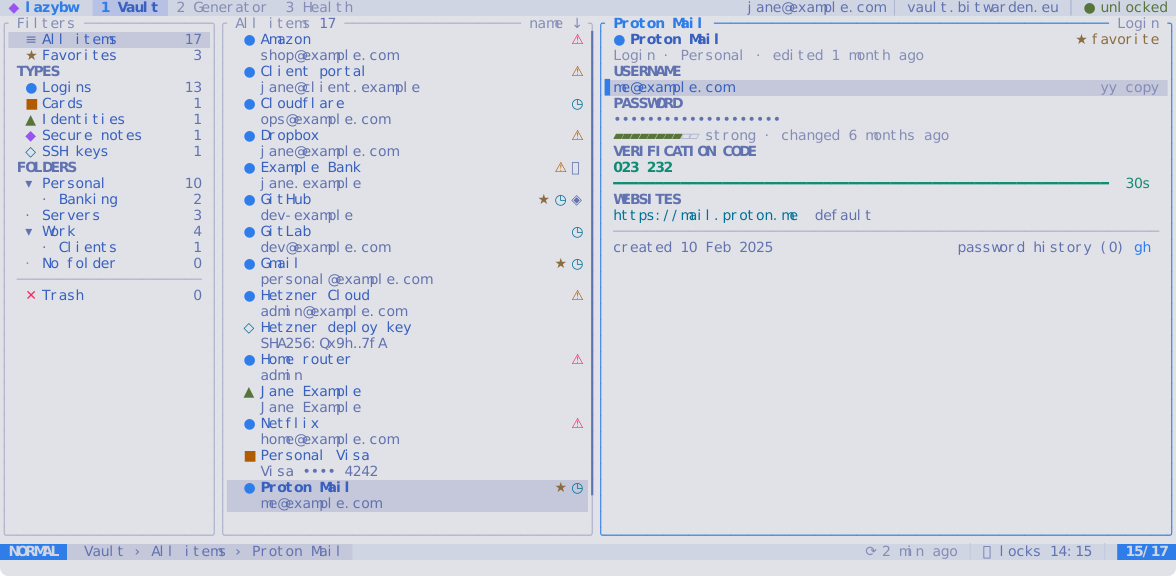
| Theme | Style |
|---|---|
tokyonight-night (default) | dark |
tokyonight-storm | dark |
tokyonight-moon | dark |
tokyonight-day | light |
catppuccin-mocha | dark |
gruvbox-dark | dark |
nord | dark |
rose-pine | dark |
kanagawa-wave | dark |
terminal | uses your terminal’s own colours |
Space t opens a picker with the built-in themes and your own. The screen
changes to each theme as you move through the list; Enter keeps it and
Esc goes back to the one you had. :theme followed by Tab previews the
same way. :theme nord switches directly, and ui.theme in the
configuration sets the theme lazybw starts with.
lazybw themes lists them, and lazybw themes --preview nord prints a
theme’s colours.
With ui.transparent = true, lazybw leaves the background to the terminal,
which suits terminals with a background image or blur. Popups keep a solid
background so they stay readable.
Your own theme
Put a file in ~/.config/lazybw/themes/, for example my-night.toml:
name = "my-night"
extends = "tokyonight-night"   # start from an existing theme
appearance = "dark"            # dark or light

[palette]
accent = "#bb9af7"

[tokens]
"border.focus" = "magenta"
"match" = "#ff9e64"
Then set ui.theme = "my-night". lazybw reloads the theme when you save the
file, so you can tweak it with lazybw open.
A theme has two layers:
- The
paletteholds named colours:bg,bg_dark,bg_highlight,bg_visual,border,fg,fg_dark,comment,dark5,accent,blue,cyan,magenta,purple,orange,yellow,green,teal,redandshadow. - The
tokenssay which colour each part of the interface uses. A token can point to a palette name, a#rrggbbcolour, an ANSI colour number, orresetfor the terminal’s default.
Useful tokens:
| Token | Colours |
|---|---|
bg, bg.bar, bg.float | main background, top and bottom bars, popups |
selection, bg.highlight | the selected row, highlighted rows and segments |
border, border.focus | pane borders, the focused one |
fg, fg.alt, fg.muted, fg.subtle | text from strongest to faintest |
accent | titles, focus and the selection bar |
ok, info, caution, warn, error | messages and states |
type.login, type.card, type.identity, type.note, type.ssh | item icons |
match, link, fav, dirty | search matches, websites, favourites, [+] |
mode.normal, mode.insert, mode.visual, mode.command | the mode label |
The built-in themes are in crates/lazybw/assets/themes/ in the repository
and make good starting points.
On terminals without 24-bit colour, lazybw converts every colour to the
closest of the 256 standard ones. If colours look wrong, check that
COLORTERM is set to truecolor in a terminal that supports it.
Icons
ui.icons chooses the symbols:
nerdfont(default) uses icons from a Nerd Font. Install one and select it in your terminal.unicodeuses ordinary symbols such as●,★and▸, which most fonts have.asciiuses only plain characters, for the most limited terminals.
How lazybw keeps secrets safe
lazybw sees every secret you open, so it handles them with care at each step: in memory, on disk, on the clipboard and in the terminal.
Bitwarden does the cryptography
lazybw contains no Bitwarden cryptography. It starts the official bw serve
and sends it requests; bw decrypts and encrypts. lazybw itself never makes
network connections. Everything goes through bw, which talks to your
Bitwarden server, and, for the breach check, to Have I Been Pwned.
A private channel to bw
bw serve normally listens on a TCP port, which any program on the machine
could connect to. lazybw starts it on one end of a socket pair instead, a
private channel that exists only between the two processes. No port is open
and no socket file exists on disk. You can check with ss -tlpn and
ss -xlpn while lazybw runs.
When lazybw exits, crashes or is killed, bw serve stops too: the kernel
sends it a signal when its parent dies.
Nothing secret on the command line
The master password, the session key and decrypted values never appear in
process arguments, where other users could see them with ps. They travel
through environment variables of the child process or through the private
channel.
Secrets in memory
- Decrypted values are kept in a wrapper that overwrites the memory when the
value is dropped, and prints as
***if it ever ends up in a log. - What you type into password fields (unlock, re-prompt, export passwords, API secret) lives in a buffer that is wiped as you edit and when it is dropped.
- Locking drops the decrypted vault, the undo history, the generator history, search results and copies of items, and clears the clipboard if it still holds a value lazybw copied.
- lazybw marks its process as not dumpable and turns off core dumps, so a crash does not write the vault to a core file and other processes of the same user cannot read its memory.
Files on disk
- Files that can hold secrets are created with mode 600 (readable only by you), and lazybw starts with a umask of 077.
- Temporary files, such as notes opened in
$EDITORor a filtered import, live in$XDG_RUNTIME_DIR/lazybw, which is in memory on most systems. They are overwritten and deleted as soon as they are no longer needed. - For Vim, Neovim, Emacs and micro, lazybw switches off swap, undo, backup and history files, so the editor does not keep its own copy of the text.
- The folder state file stores folder ids, never names.
- The log (
~/.local/state/lazybw/lazybw.log) never contains requests, responses or secret values.
The terminal
While $EDITOR or bw login runs, lazybw stops reading the keyboard, so
what you type there, including the master password, goes only to that
program.
The clipboard
Copied values are cleared after 30 seconds, on lock and on exit, but only if the clipboard still holds the value lazybw put there. Clipboard managers such as cliphist or Klipper may keep their own history. Check their settings if that matters to you.
Re-prompt and reveal
Items marked “master password re-prompt” in Bitwarden ask for the master password before any secret in them is shown, copied or changed. Revealed values hide again after 20 seconds, when you move to another item, and when the terminal window loses focus.
Limits
These protections narrow what can leak; they do not make a compromised machine safe. In particular:
- While the vault is unlocked, decrypted data is in memory: in
bw serve(a Node.js process lazybw does not control), in lazybw’s cache, and in the text drawn on the screen. Zeroizing removes lazybw’s copies when they are dropped; it cannot reach copies made by other programs or by the terminal. - With the clipboard over OSC 52 (over SSH, in a container), lazybw cannot read the clipboard back, so it clears it when the timeout ends even if you copied something else in the meantime. Clipboard managers and terminals may keep their own history.
- Editors other than Vim, Neovim, Emacs and micro get no special options; check that yours does not keep backups or swap files of the notes you edit.
bw.transport = "unix"puts the socket in lazybw’s private runtime directory instead of using a socket pair.- lazybw protects against other users and programs reading its files; it cannot protect against someone with your account or root on the machine.
Reporting a problem
If you find a security problem, please report it privately through GitHub’s security advisories for the repository instead of opening a public issue.
Troubleshooting
Start with:
lazybw doctor
It shows what lazybw sees: the bw path and version, the login state, the
clipboard backend, the terminal and the file paths. The log is in
~/.local/state/lazybw/lazybw.log, and Space m shows the messages of the
current session.
lazybw says bw was not found or is too old
Install the Bitwarden CLI as described in Installation
and check bw --version. If bw is not on your PATH, set bw.path in
the configuration or the LAZYBW_BW environment variable.
Colours look grey or wrong
lazybw uses 24-bit colour when the terminal says it supports it. Check that
echo $COLORTERM prints truecolor. Over SSH and inside tmux this variable is
often lost; set it in your shell profile, or in tmux with
set -as terminal-features ",*:RGB". The terminal theme uses your
terminal’s own palette and works everywhere.
Icons show as boxes or question marks
Your terminal font has no Nerd Font icons. Install a Nerd Font and select it
in the terminal, or set ui.icons = "unicode".
Some key combinations do nothing
Many terminals send the same code for Ctrl-i and Tab, Ctrl-m and
Enter, or Ctrl-[ and Esc. kitty, foot, WezTerm, Ghostty and recent
Alacritty can tell them apart, and lazybw switches that on automatically.
In tmux, add set -g extended-keys on. lazybw keys --check warns about
bindings your terminal cannot distinguish.
Copying does nothing
lazybw doctor shows the clipboard backend. Under Wayland, install
wl-clipboard; under X11, xclip or xsel work as fallbacks. Over SSH,
lazybw uses OSC 52, which your local terminal must allow (in tmux:
set -g set-clipboard on).
The screen shows leftover characters
Press Ctrl-l to redraw everything. If it keeps happening, please open an
issue with your terminal, its version and what you were doing.
Sync errors or “Vault is locked”
The session may have expired on the server. Lock with Space l and unlock
again. If that fails, log out with :logout and log in once more.
Reporting a bug
Open an issue on GitHub with the output of lazybw doctor, the last lines of
the log and the steps that lead to the problem. Neither contains passwords or
vault data, though the doctor output includes your email address, which you
may want to remove.
Contributing
Bug reports, ideas and pull requests are welcome on GitHub.
Building and testing
git clone https://github.com/SyscallBrain/lazybw
cd lazybw
cargo build
scripts/check.sh
scripts/check.sh runs cargo fmt --check, Clippy with warnings as errors
and the whole test suite. A pull request should pass it.
The tests never touch a real vault. crates/fake-bw is a stand-in for the
Bitwarden CLI that keeps its vault in a JSON file and records every request,
so tests can check exactly what lazybw sent. The screens are covered by
snapshot tests with insta: after an intended change to the
interface, review and accept the new snapshots with cargo insta review, or
run the tests with INSTA_UPDATE=always.
How the code is organised
lazybw follows The Elm Architecture. All state lives in one AppState.
Input, timers and answers from bw become messages; a pure update function
changes the state and returns effects (send a request to bw, copy to the
clipboard, open $EDITOR), and the main loop carries the effects out.
Drawing reads the state and changes nothing.
| Path | Holds |
|---|---|
crates/lazybw/src/app/ | state, messages, effects, and update/ split by area |
crates/lazybw/src/ui/ | drawing: widgets.rs and one file per group of screens in screens/ |
crates/lazybw/src/bw/ | finding bw, starting bw serve, the HTTP client and the models |
crates/lazybw/src/vault/ | the item cache, filters, folders, search and health checks |
crates/lazybw/src/input/ | the key dispatcher, line editing and secret input |
crates/lazybw/src/config/ | configuration, keymap and settings |
crates/lazybw/src/theme/ | themes and colour handling |
The docs/ folder has the longer design notes: design.md for the screens,
keymap.md for the keymap model, bw-integration.md for everything about
talking to bw, and decisions.md for the reasons behind the main choices.
This book
The book lives in book/ and is built with mdBook:
cargo install mdbook
mdbook serve book --open
The screenshots in it come from cargo run -p lazybw --example screenshots,
and the logo from python3 scripts/make-logo.py.
Default keybindings
Every binding below can be changed; see Keybindings.
<leader> is Space unless you set keys.leader.
Key notation
Canonical notation is Vim’s. Parsing is case-insensitive for names inside <> and case-sensitive for
plain characters.
| Form | Examples | Notes |
|---|---|---|
| Printable character | j, G, *, /, ?, : | G is Shift+g; never write <S-g> (normalised to G) |
| Named keys | <CR> (<Enter>, <Return>), <Esc>, <Tab>, <S-Tab>, <BS>, <Del>, <Space>, <Up>, <Down>, <Left>, <Right>, <Home>, <End>, <PageUp>, <PageDown>, <Insert>, <F1>…<F12>, <lt> (literal <), <Bar> (` | `) |
| Modifiers | <C-d>, <A-x> (= <M-x>), <C-A-x>, <S-Up>, <C-S-x> | <C-S-…> needs keyboard enhancement (§7) |
| Leader | <leader> | expands to keys.leader |
| Sequences | gg, <leader>fn, <C-w>h, zR | concatenation |
Equivalences applied at parse time: <C-I> = <C-i>; <S-a> = A; <Return> = <CR>; <M-x> =
<A-x>. Without keyboard enhancement, also <C-i> = <Tab>, <C-m> = <CR>, <C-[> = <Esc>,
<C-h> = <BS>.
Display (hints, which-key, help, statusline): Ctrl-d, Alt-x, Shift-Tab, Enter, Esc, Space;
plain characters are joined (gg, yp), named keys are separated by spaces (Space f n, Ctrl-w h).
Bindings by context
global
| Keys | Action |
|---|---|
q | app.quit |
<Esc> <C-c> | app.cancel |
? | app.help |
: | cmdline.open |
<C-p> | quick_open |
<C-l> | app.redraw |
h <C-w>h <Left> | focus.left |
l <C-w>l <Right> | focus.right |
<Tab> / <S-Tab> | focus.next / focus.prev |
gt / gT | tab.next / tab.prev |
<leader>1 <leader>2 <leader>3 | tab.goto 1/2/3 (Vault, Generator, Health) |
/ / n / N | search.start / search.next / search.prev |
R | vault.sync |
<C-o> / <C-i> | jump.back / jump.forward |
<leader>/ | quick_open |
<leader>n | item.new |
<leader>g / <leader>h | generator.open / health.open |
<leader>e / <leader>i | vault.export / vault.import |
<leader>S | vault.sync force |
<leader>l | vault.lock |
<leader>t | theme.pick |
<leader>b | layout.toggle_sidebar |
<leader>d | list.toggle_density |
<leader>m | app.messages |
<leader>, | app.settings |
<leader>k | app.keymap |
<leader>q | app.quit |
<leader>fn / <leader>fr / <leader>fd / <leader>ff | folder.new / folder.rename / folder.delete / folder.jump |
<leader>sn / <leader>sm / <leader>sc / <leader>st / <leader>sr | sort by name / modified / created / type, sort.reverse |
Which-key group labels: <leader>f “+folders”, <leader>s “+sort”, g “+go”, z “+folds and reveal”,
y “+copy”, d “+delete”, <C-w> “+window”.
Movement (shared by sidebar, list, detail, visual, editor, generator, health, settings, keymap_editor, help)
| Keys | Action |
|---|---|
j <Down> / k <Up> | nav.down / nav.up |
gg / G | nav.top / nav.bottom |
<C-d> / <C-u> | nav.half_down / nav.half_up |
<C-f> <PageDown> / <C-b> <PageUp> | nav.page_down / nav.page_up |
H / M / L | screen top / middle / bottom (not in detail/editor) |
zz / zt / zb | view.center / view.top / view.bottom |
sidebar
| Keys | Action |
|---|---|
<CR> | filter.apply |
l <Right> | fold.expand_or_apply (open a closed folder, else show its items) |
h <Left> | fold.collapse_or_parent (close an open folder, else go to its parent) |
za / zo / zc / zR / zM | fold.toggle / fold.open / fold.close / fold.open_all / fold.close_all |
a / r / dd | folder.new / folder.rename / folder.delete |
u / <C-r> | undo / redo |
list
| Keys | Action |
|---|---|
<CR> l | item.open |
yy | item.copy primary |
yu / yp / yt / yU / yn | item.copy username/password/totp/uri/notes |
a | item.new (type picker) |
e i | item.edit |
gE | item.edit_json |
dd | item.trash |
D | item.delete |
r | item.restore (Trash filter) |
X | trash.empty (Trash filter) |
u / <C-r> | undo / redo |
* | item.favorite |
m | item.move |
Y / p | item.yank / item.paste_clone |
gx | item.open_uri |
gh | item.history |
gp | item.generate_password |
gf | item.goto_folder |
K | item.info |
za / zR / zM | item.reveal_toggle / item.reveal_all / item.hide_all |
V | visual.start |
x | mark.toggle |
detail
| Keys | Action |
|---|---|
j / k | next / previous field (movement) |
yy | item.copy_field |
yu / yp / yt / yU / yn | as in list |
za / zR / zM | item.reveal_toggle / item.reveal_all / item.hide_all |
i / cc | item.edit_field / item.change_field |
e | item.edit |
gx | item.open_uri (the URI under the cursor) |
gh / gp / gf / K / * / m | as in list |
u / <C-r> | undo / redo |
visual
| Keys | Action |
|---|---|
j k gg G … | extend the range |
x | mark.toggle |
d | item.trash (selection) |
D / r | item.delete / item.restore (Trash filter) |
m | item.move (selection) |
* | item.favorite (sets all to favorite unless all already are, then removes) |
<Esc> V | visual.exit |
editor (NORMAL)
| Keys | Action |
|---|---|
j <Down> <Tab> / k <Up> <S-Tab> | editor.next_field / editor.prev_field |
gg / G | editor.first_field / editor.last_field |
i / a / I / A | insert / append / insert at start / append at end |
cc S | editor.change_field |
o / O | editor.row_add_below / editor.row_add_above |
dd | editor.row_delete |
<C-a> / <C-x> | editor.cycle_next / editor.cycle_prev |
<CR> | editor.activate |
za | item.reveal_toggle |
<C-g> | editor.generate |
<C-e> | editor.external |
gE | item.edit_json |
u / <C-r> | editor.undo / editor.redo |
<C-s> | editor.save |
ZZ / ZQ | editor.save_close / editor.discard |
q | editor.close |
h / l | editor.column_left / editor.column_right |
insert
| Keys | Action |
|---|---|
<Esc> <C-[> <C-c> | editor.normal |
<Tab> <CR> / <S-Tab> | editor.next_field / editor.prev_field (stay in INSERT) |
<C-a> / <C-x> | editor.cycle_next / editor.cycle_prev (on option fields) |
<C-g> | editor.generate |
<C-e> | editor.external |
<C-s> | editor.save |
Fixed line-editing keys in INSERT (not remappable): <BS>, <Del>, <Left>, <Right>, <Home>,
<End>, <C-w> (delete word), <C-u> (delete to start), <C-h> (= <BS>), bracketed paste.
notes
edtui provides Vim NORMAL/INSERT/VISUAL inside the notes field. lazybw binds only: <Tab>/<S-Tab> in
NORMAL to leave the field, <C-e> external editor, <C-s> save, and : to open the lazybw command line
(so :w, :wq, :q! keep working).
generator
| Keys | Action |
|---|---|
r | generator.regenerate |
yy | generator.copy |
<Tab> | generator.toggle_mode |
l <C-a> + / h <C-x> - | generator.increase / generator.decrease |
x | generator.toggle_option |
<CR> | generator.use (popup) / generator.toggle_option (tab, on a checkbox) |
health
| Keys | Action |
|---|---|
<Tab> / <S-Tab> | health.next_category / health.prev_category |
<CR> | health.open_item |
e / gp | item.edit / item.generate_password |
r | health.rerun |
quick_open
| Keys | Action |
|---|---|
<C-n> <C-j> <Down> / <C-p> <C-k> <Up> | quick_open.next / quick_open.prev |
<CR> | quick_open.accept |
<C-y> / <C-u> / <C-t> | copy password / username / code |
<C-e> | quick_open.edit |
<Esc> <C-c> | app.cancel |
cmdline
| Keys | Action |
|---|---|
<CR> | cmdline.execute |
<Tab> / <S-Tab> | complete next / previous |
<Up> <C-p> / <Down> <C-n> | history previous / next |
<Esc> <C-c> | app.cancel |
picker, confirm, unlock, settings, keymap_editor, help
| Context | Keys → action |
|---|---|
| picker | type to filter; <C-n> <Down> / <C-p> <Up> next/prev; <CR> accept; <Esc> cancel. These come from the keymap, so they can be rebound. Lists that are not keymap contexts (export format, import preview, password history, login choices) also take <C-n> / <C-p> beside the arrows and j / k. Small pickers (item type) also accept single-letter accelerators shown in the list (l login, n note, c card, i identity, s SSH key). |
| confirm | y / <CR> (only when the default is yes) → yes; n / <Esc> → no. Destructive dialogs require typing a word instead. |
| unlock | <CR> submit; <C-o> log out; <C-c> quit. The master password re-prompt shares this context but <C-c> cancels it, like <Esc>. The login, start-up and error screens are not keymap contexts; <C-c> quits from them too. |
| settings | movement, also <C-n> / <C-p>; <CR> activate; l <C-a> / h <C-x> next/previous value; r reset to default; q <Esc> close. |
| keymap_editor | movement, also <C-n> / <C-p>; / filter; <CR> c rebind; a add key; dd remove key; r reset action; R reset all; <Tab>/<S-Tab> context; <C-s> save; q close. |
| help | movement, also <C-n> / <C-p>; / search; q <Esc> close. |
Command line
: opens the command line at the bottom (cmdline row). Completion: commands first, then arguments
(themes, folders, item types, settings and their values, export formats, import formats, filesystem paths
with ~ expansion). History is kept between sessions. Unknown commands print
E492: Not an editor command: <text> (Vim’s message).
| Command | Action |
|---|---|
:q[uit] | app.quit (in editor: editor.close) |
:q! | editor.discard in editor, otherwise app.quit_force |
:qa[ll] / :qa! | app.quit / app.quit_force |
:w[rite] | editor.save (keymap editor: keymap.save) |
:wq :x | editor.save_close |
:e! | editor.reload |
:{n} | go to item number n in the list |
:new [login|note|card|identity|ssh] | item.new |
:edit / :edit json | item.edit / item.edit_json |
:delete / :delete! | item.trash / item.delete |
:restore | item.restore |
:fav | item.favorite |
:move [folder] | item.move |
:copy <field> | item.copy <field> |
:open [n] | item.open_uri |
:history | item.history |
:gen [length] / :gen phrase [words] | generate with these options and copy |
:folder new|rename|delete [name] | folder.* |
:sort name|modified|created|type[!] | sort.set (! reverses) |
:theme [name] | theme.set / theme.pick |
:set | app.settings |
:set opt=value / :set opt? / :set opt! / :set opt& | set / show / toggle boolean / reset |
:map [ctx] [keys] [action…] / :unmap ctx keys | session mappings (§6.6) |
:keymap | app.keymap |
:sync / :sync! | vault.sync / vault.sync force |
:lock / :logout | vault.lock / vault.logout |
:export [json|encrypted|account|csv] [path] | vault.export (opens the wizard pre-filled) |
:import [format] [path] | vault.import (wizard pre-filled) |
:health | health.open |
:trash | sidebar filter Trash |
:empty-trash | trash.empty |
:messages | app.messages |
:help [topic] | app.help |
:doctor | app.doctor |
:set option names are the config keys without the section where unambiguous (:set theme=nord,
:set clipboard_timeout=20s, :set animations!); fully qualified names always work
(:set ui.animations=false).
Search language
Used by / (inside the current sidebar filter) and by quick open (whole vault, trash excluded unless
is:trash).
- Tokens are separated by spaces;
"quoted phrases"keep spaces;-negates a token or qualifier. - Free text is fuzzy-matched with
nucleo-matcher(smart case, Unicode normalisation) against: name (weight 1.0), username (0.7), URI hosts (0.6), custom field names (0.4), notes (0.3, only whenvault.search_notes = true). Item score = best weighted score; ties: favorites first, then items opened in this session (most recent first), then name. - Matched characters of the name are highlighted with the
matchtoken.
| Qualifier | Values |
|---|---|
type: | login/l, note/n, card/c, identity/i, ssh/s |
folder: | case-insensitive prefix of the folder path (folder:work/proj), none |
is: | fav, trash, reprompt, weak, reused, exposed, old, insecure (the last five use the latest health run; without one they are ignored and the statusline says “Run Health first”) |
has: | totp, passkey, fields, notes, uri, history, attachments |
uri: | substring of any URI |
user: | substring of the username |
name: | substring of the name |
Examples: git -type:note, has:totp folder:work, is:reused uri:google, "home router".
Default configuration
This is the configuration lazybw uses when ~/.config/lazybw/config.toml
does not set an option. lazybw config --print-default prints the same file.
See Configuration for how to change it.
# lazybw configuration
# Location: $XDG_CONFIG_HOME/lazybw/config.toml (usually ~/.config/lazybw/config.toml)
# Durations: "500ms", "30s", "15m", "2h", "365d", or "never" where allowed.

[bw]
path = ""                       # path to the Bitwarden CLI; empty = $LAZYBW_BW, then $PATH
transport = "fd"                # "fd" (private socket, recommended) or "unix" (socket in $XDG_RUNTIME_DIR)
inherit_session = false         # reuse BW_SESSION from the environment if it is set

[ui]
theme = "tokyonight-night"
transparent = false
icons = "nerdfont"              # nerdfont | unicode | ascii
animations = true
list_density = "comfortable"    # comfortable | compact
statusline_separator = "arrow"  # arrow | round | slant | none
show_hints = true               # key hints next to the active field
date_format = "relative"        # relative | iso
mouse = true

[security]
clipboard_timeout = "30s"       # "never" keeps copied values
clear_clipboard_on_exit = true
auto_lock = "15m"               # "never" disables
reveal_timeout = "20s"
hide_on_focus_lost = true
reprompt_grace = "0s"           # how long a master password re-prompt stays valid
totp = true                     # show verification codes computed from authenticator keys

[vault]
sync_interval = "10m"           # "never" disables background sync
sort = "name"                   # name | modified | created | type
search_notes = false
show_empty_types = false
confirm_trash = false           # dd asks before moving to trash (it can always be undone with u)

[generator]
type = "password"               # password | passphrase
length = 24
uppercase = true
lowercase = true
numbers = true
special = true
min_numbers = 1
min_special = 1
avoid_ambiguous = false
words = 5
separator = "-"
capitalize = true
include_number = true

[health]
check_exposed = true            # Have I Been Pwned (k-anonymity) through bw report
old_password_age = "365d"

[editor]
command = ""                    # empty = $VISUAL, then $EDITOR, then vi

[keys]
leader = "<Space>"
timeoutlen = "1000ms"
which_key_delay = "300ms"
defaults = true
# Per-context overrides, e.g.:
# [keys.list]
# "<Del>" = "item.trash"
# "dd" = "noop"
Command-line options
lazybw                          start the interface
lazybw --version                print the version
lazybw --help                   print help
lazybw doctor
Prints what lazybw found: the bw path, its version and the features it
enables, the login state, the clipboard backend, the terminal size and colour
depth, and the configuration, state and log paths. Inside tmux it also
reminds you about extended-keys.
lazybw keys
lazybw keys                     every binding, grouped by context
lazybw keys --context list      only one context
lazybw keys --defaults          the built-in defaults, ignoring your config
lazybw keys --check             validate the bindings; exit code 1 on errors
The columns are the context, the keys, the action, its description and where
the binding comes from (default or user).
lazybw themes
lazybw themes                   list the built-in themes
lazybw themes --preview nord    print the colours of one theme
lazybw config
lazybw config --path            print the path of config.toml
lazybw config --print-default   print the default configuration
lazybw config --check           validate config.toml; exit code 1 on errors
Environment variables
| Variable | Effect |
|---|---|
LAZYBW_BW | path to bw, used when bw.path is empty |
BW_SESSION | reused only with bw.inherit_session = true |
BITWARDENCLI_APPDATA_DIR | passed on to bw (its data directory) |
VISUAL, EDITOR | the editor for Ctrl-e and gE, unless editor.command is set |
XDG_CONFIG_HOME, XDG_STATE_HOME, XDG_RUNTIME_DIR | where lazybw keeps its files |
COLORTERM | truecolor or 24bit turns on 24-bit colour |
NO_COLOR | turns colours off |
Signals
SIGUSR1 locks the vault (pkill -USR1 lazybw). SIGTERM and SIGHUP quit
cleanly.